
Image creation and editing tools
Use this guide to choose the correct image tool, write useful prompts, run local inpainting, and review product accuracy before publishing.
Image workspace overview
Image tools live in one workspace. The left side switches tools, the center handles upload and preview, and the bottom area contains prompt, canvas, quality, model, and generation controls.
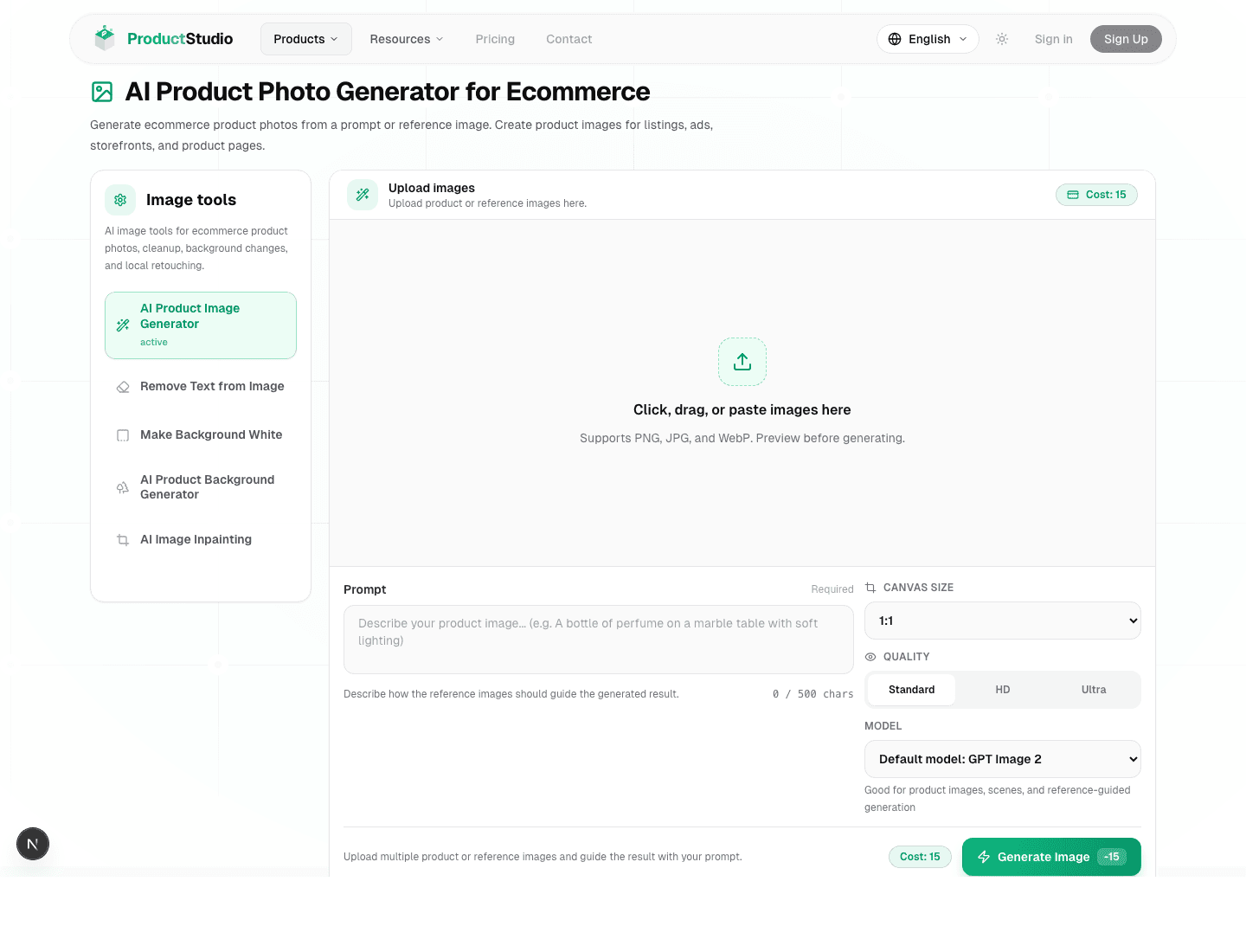
Choose the right image tool
| Tool | Use it for | Input |
|---|---|---|
| AI Product Image Generator | Complete ecommerce product photos, ad images, detail-page visuals | Prompt required, reference image optional |
| Remove Text from Image | Remove labels, date stamps, stickers, or unwanted text | Upload one image, optional note |
| Make Background White | Create clean white-background product images | Upload one product image |
| AI Product Background Generator | Create lifestyle, studio, seasonal, or ad backgrounds | Upload a product image and describe the background |
| AI Image Inpainting | Change one small area without changing the full image | Upload one image and select or paint the target area |
Standard image generation flow
- 1Open Products -> Image and choose the tool from the left side.
- 2Upload, drag, or paste the source image when the tool needs one.
- 3Write the prompt or note required by the selected tool.
- 4Choose the canvas ratio, such as 1:1, 4:5, or 16:9.
- 5Choose quality. Higher quality consumes more credits.
- 6Click the generation button, wait for the result, then download the usable image.
Prompt structure for product images
Good prompts explain what the product is and where the output will be used. Include product type, material, color, usage scene, output purpose, and restrictions.
| Information | Example |
|---|---|
| Product type | Wireless earbuds, skincare serum, pet water fountain |
| Material and color | Black matte plastic, transparent glass bottle, light wood texture |
| Usage scene | Bathroom counter, office desk, outdoor camping setup |
| Output purpose | Listing hero image, social ad, detail-page feature image |
| Restrictions | No text, no watermark, no extra logo |
Local inpainting for small edits
Use local inpainting when you only want to modify a small area, such as removing a sticker, replacing a local object, or changing one region's color.
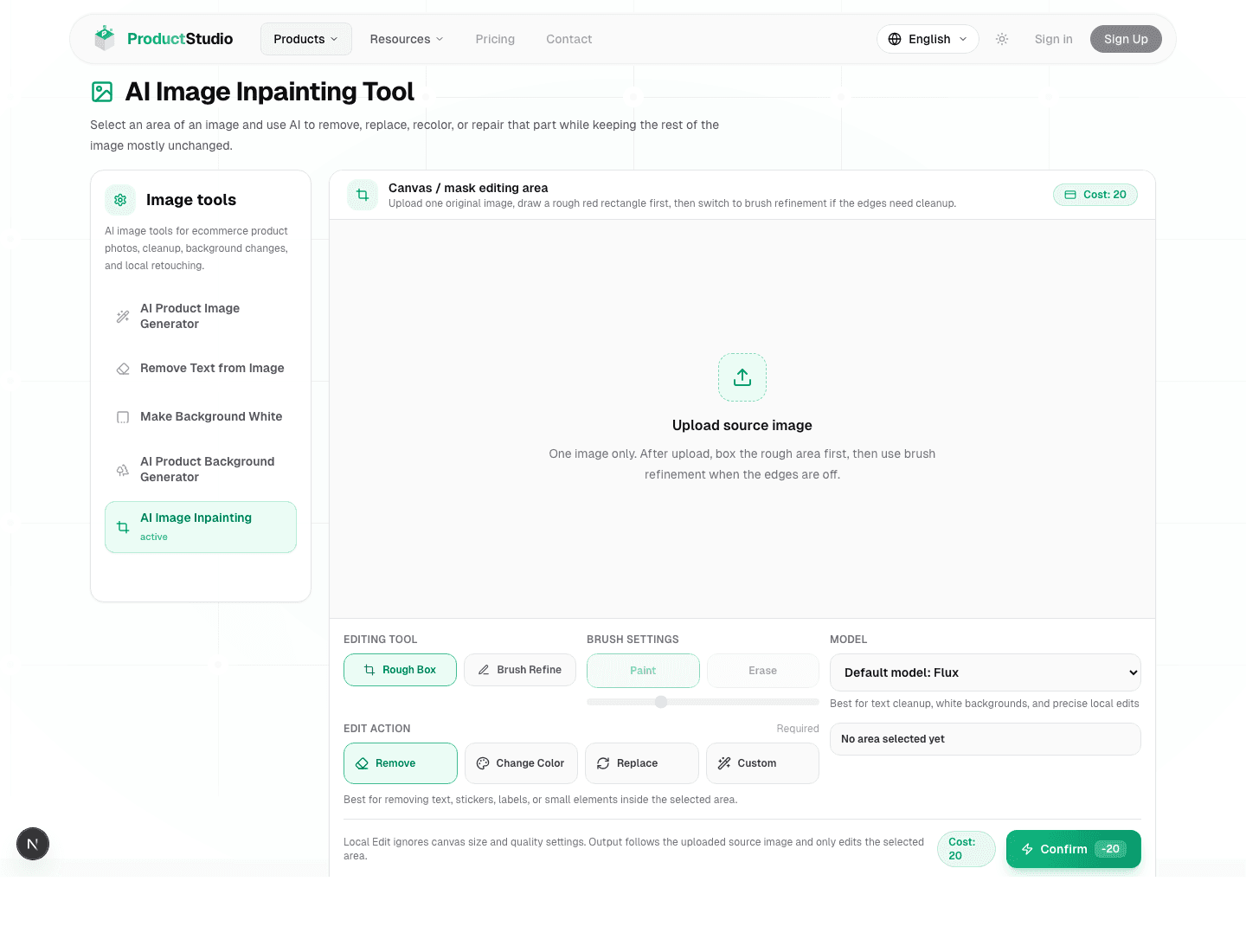
- 1Upload one original image.
- 2Use box selection to mark the rough edit area.
- 3Switch to paint refinement if the edge is not accurate enough.
- 4Choose remove, recolor, replace, or custom instruction.
- 5Generate and review the selected-area edge, texture, shadow, and product subject.
Review image output before publishing
- Check product shape, material, color, package ratio, and accessories.
- Look for wrong text, extra labels, watermarks, or unexpected logos.
- Use inpainting for small fixes instead of regenerating the whole product image.
- Review platform-specific rules before publishing product images.
Image FAQ
Why does ProductStudio say I need a prompt or image?
Each image tool has different required inputs. Product photo generation needs a prompt, cleanup tools need an uploaded image, and inpainting needs both an image and a valid selected area.
What should I do when the result does not match the product?
Use a clearer reference image and explicitly ask ProductStudio to keep product shape, color, material, and package proportions. For small changes, use AI Image Inpainting.
Related resources
PRODUCTSTUDIO